Code Generation using Sitecore Rocks and Visual Studio
Index Points
- Introduction
- Assumptions
- Code Generation Steps using Sitecore Rocks
- Image Guided Steps for Code Generation using Sitecore Rocks
- Conclusion
- Reference Links
Introduction
This post will guide you on how to work with code generation using Sitecore Rocks.
Assumptions
- You have already setup Sitecore site visual studio solution.
- If not then you may follow the steps mentioned here on John West's Blog or Check out Sitecore training series on YouTube - Sitecore Training : Developer Fundamental Series - Creating Visual Studio Project For Sitecore.
- Installed and Configured Sitecore Rocks with Visual Studio solution for Sitecore site.
- If not then check the Sitecore training series on YouTube -
- Sitecore Rocks Training: Installation Series - Sitecore Rocks Visual Studio Plug-in Installation
- Sitecore Rocks Training : Installation Series - Creating a Sitecore Rocks Connection
- Sitecore Rocks Training : Installation Series - Installing Sitecore Rocks from VSIX
- Sitecore Rocks Training : Installation Series - Sitecore Rocks Windows Desktop Installer
- If not then check the Sitecore training series on YouTube -
Code Generation Steps using Sitecore Rocks
For Code generation using Sitecore Rocks the steps are:
- Setup the Sitecore site using .exe installer or Siteroot zip - available from Sitecore SDN.
- Setup Sitecore site in Visual studio solution - Creating .sln file.
- Install Sitecore Rocks (if not already installed).
- Connect the Visual studio solution with Sitecore site using Hard Rock web service exposed by Sitecore.
- Create new StronglyTypedItems file in Sitecore visual studio solution, extension will be .scx, with appropriate name - for example "CodeGenerationFile.scx".
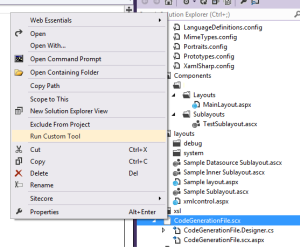
- Right-click on created file "CodeGenerationFile.scx" and execute the command 'Run Custom Tool' for code generation.
Note: Check YouTube video series linked in assumption section for information on how to install and setup Sitecore Rocks and Sitecore Visual studio solution.
Image Guided Steps for Code Generation using Sitecore Rocks
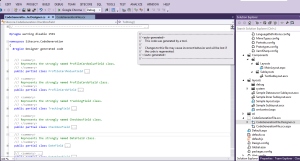
The visual steps for Sitecore Rocks code generation are as below:
 Create new file for Code generation
Right click on project > Add > New Item > Visual C# > Sitecore > Code Generation > select Strongly Typed Items > click Add
Conclusion
Code generation with Sitecore Rocks is very easy to follow. After generating code using Sitecore Rocks, developers may move the classes to relatively named class files by themselves or using command 'Move class to file' using ReSharper tool.
Reference Links
- Sitecore Training YouTube channel
- Question on Stackoverflow for how to use Sitecore Rocks for Code Generation
- Blog post - Sitecore Rocks Visual Studio Add Item Templates
- Blog post - Creating Sitecore Visual Studio Solution
Do comment if you like this post or have any opinions.