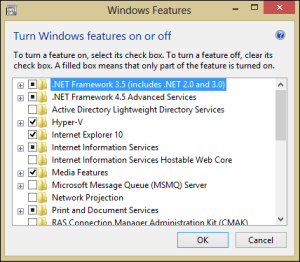
How to install .NET Framework 2.0 and 3.5 on Windows 8 in Offline Mode
I have installed Windows 8 few days back. And during some initial programs setup I noticed that Windows 8 does not include .NET 3.5 (include .NET 2.0 and 3.0) by default. However it did contained the setup in the OS disc.
So question is, How to install the .NET framework 3.5 including .NET 2.0 and 3.0 ?
Solution is answered as below.
I had found my solution on Microsoft support ? here.
This an Re-post of the same with corrections.
Steps below shows how we can install /enable the .NET Framework 3.5 (include .NET 2.0 and 3.0) feature in offline mode i.e. without using internet:
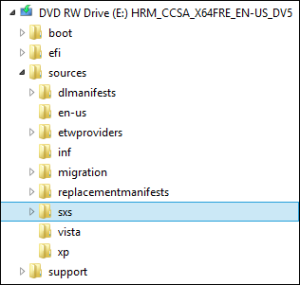
Step 1: Insert Windows 8 DVD or mount ISO image. The source of this feature can be found in folder E:\sources\sxs (In this case E: drive letter will be on which Windows 8 Media is located).
Step 2: Open cmd.exe (Command Prompt) with Administrative Privileges.
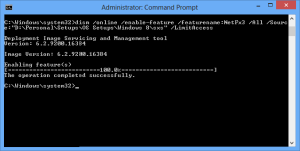
Step 3: Run the following command
dism.exe /online /enable-feature /featurename:NetFx3 /All /Source:"E:\sources\sxs" /LimitAccess
and then hit Enter.
Finish: After completing the installation of .NET Framework 3.5 you can see that the feature is enabled as shown in the screenshot below.