Installing .NET 3.5 service pack 1 along with application setup
Many of us would have been creating setups for applications either using WinForms or WPF and other such, but we really ignore the fact that users might not have all the prerequisites that our application requires to work.
Possibilities for that might be one or more as below:
- User do have .NET framework even installed.
- Users .NET framework installation is older or newer but not the required one.
- For example, user have .NET framework version 3.5 but not 3.5 SP1
- You have disabled to check .NET framework exists before application installs so application will not start all after installation, so users frusts and uninstalls your application.
- You have enabled to check and install .NET framework along with your application online, but you have ignored the fact that user might have no internet access on their system.
So what could we do for this ?
Solution is to include the .NET framework standalone setup installation in your application setup.
And steps to install the .NET framework 3.5 with the application are as follows:
Step 1 - Download the combined installation package for the .NET Framework 3.5 from Microsoft download site dotnetfx35.exe. 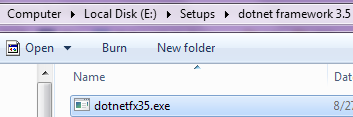
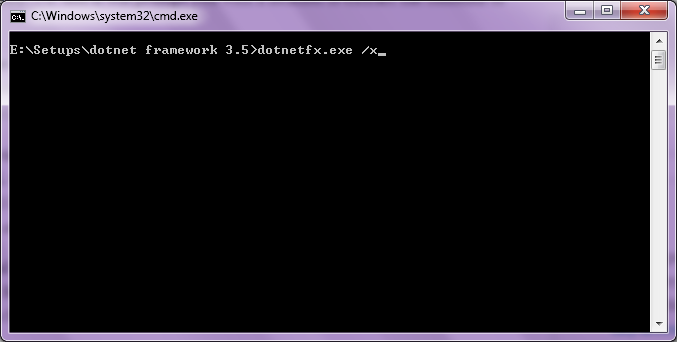
Step 2 - After downloading this package, you have to extract the contents by running dotnetfx35.exe /x and it will prompt you with a location to extract the contents to a path.
Step 3 - Copy the contents of files and folder from {extracted path}\WCU\dotNetFramework to C:\Program Files\Microsoft SDKs\Windows\v7.0A\Bootstrapper\Packages\DotNetFX35SP1 please note that to change 'Program Files' to 'Program Files (x86)' in above path if working on 64-bit system.
Step 4 - If you wish to get rid of the build warnings, you can update your PublicKey in the Product.XML with the following value: 3082010A0282010100A2DB0A8DCFC2C1499BCDAA3A34AD23596BDB6CBE2122B794C8EAAEBFC6D526C232118BBCDA5D2CFB36561E152BAE8F0DDD14A36E284C7F163F41AC8D40B146880DD98194AD9706D05744765CEAF1FC0EE27F74A333CB74E5EFE361A17E03B745FFD53E12D5B0CA5E0DD07BF2B7130DFC606A2885758CB7ADBC85E817B490BEF516B6625DED11DF3AEE215B8BAF8073C345E3958977609BE7AD77C1378D33142F13DB62C9AE1AA94F9867ADD420393071E08D6746E2C61CF40D5074412FE805246A216B49B092C4B239C742A56D5C184AAB8FD78E833E780A47D8A4B28423C3E2F27B66B14A74BD26414B9C6114604E30C882F3D00B707CEE554D77D2085576810203010001 Use this for both of the XPSEPSC* files. Product.xml is located in 'DotNetFX35SP1' directory itself
Step 5 - In Visual Studio 2010, right-click on Setup project > Properties -> Prerequisites -> Select .NET Framework 3.5 SP1 > Below select the option "Download the prerequisites from the same location as my application" > Save changes
Step 6 - And last step is to rebuild the setup project and Test.
Reference links:
- Installing .NET Framework 3.5 offline with standard application setup
- Know where .NET Framework 3.5 setup tries to connect to the Internet and avoid them"
- Creating an installable layout for the .NET Framework 3.5
- Visual studio 2010 setup project problems faced..
- VS2008 SP1 - Selecting .NET 3.5 SP1 prerequisite in setup project causes build error